Booking lessons online: let students choose an hour themselves
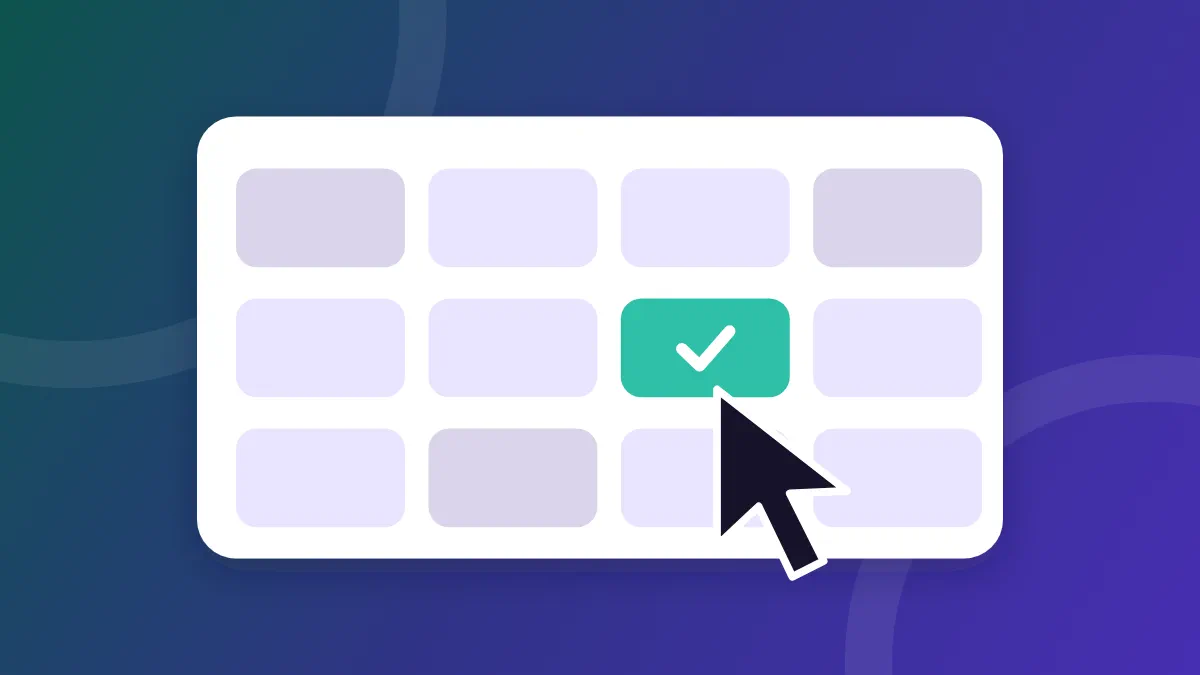
The short answer: to let students book lessons by themselves you need three things: free times that you open in advance, clear rules (how far ahead one can book, until when one can cancel), and a personal link for each student where they see their lessons and book. Regular students get a fixed weekly lesson, and self-booking is used mainly for make-ups and extra lessons.
Why let students book by themselves at all
A typical week of a private tutor includes quite a few messages like "can we move it to Thursday?", "do you have anything on Sunday?", "when is the next lesson?". Each takes a minute, and together they take an evening. And when the coordination runs on WhatsApp, your calendar sits in twenty different conversations.
Booking lessons online does not cancel the conversation with the parents. It takes the technical part out of it: which hour is free, whether the cancellation is on time, and when the next lesson is.
A fixed weekly lesson versus free times to book
These are two different tools, and most tutors need both.
| A fixed weekly lesson | A free time to book | |
|---|---|---|
| For whom | A particular student | All your students |
| Who sets it | You, once | The student, each time |
| Suited to... | The regular teaching | Make-ups, extra lessons, exam periods |
| What is created in the calendar | A lesson every week | A lesson only when someone books |
A fixed lesson is the base. A student who studies every Monday at 17:00 does not need to "book" again every week.
A free time is where the student chooses. For example: "Wednesdays 14:00 to 16:00 are open for make-ups". When a student cancelled in time and received a make-up, they choose an hour within this range, without asking you. We wrote about the make-up rules in make-up lessons: a fair method for the tutor and the student.
How it works in Teaching's Studio calendar
In Teaching all of this sits in the "Studio" module, which is optional and off by default. After you turn it on in the settings, the "Studio calendar" appears: a week starting from Sunday, as a list by day on a phone and in seven columns on a wide screen.
A fixed lesson
You choose a student, a day of the week and an hour. The system creates lessons for the next 12 weeks, and every night adds more, with no duplicates. Each such lesson is a private lesson at the rate you defined.
- Changing the day or hour moves the future lessons that nobody touched.
- A lesson you removed by hand does not come back, even after editing the fixed lesson.
- A future lesson is not a debt. A lesson enters the debt only after it has taken place, so the collection screen is not filled with next month's lessons.
A free time
"Add an open time" opens a range of hours, "Every week" on a fixed day or "On a specific day". On a computer you can also drag with the mouse on the day strip.
Within the range, start times repeat every lesson length, as long as a whole lesson fits before the end of the range. For example: a range of 10:00 to 12:00 with a 45 minute lesson gives two start times, 10:00 and 10:45. 11:30 no longer fits, because the lesson would end after 12:00.
The rules
In the Studio settings you set, among other things, how many weeks ahead a student sees free times (the default is 4), the lesson length (the default is 45 minutes), and how many hours before the lesson one can cancel without a charge (the default is 24). About the cancellation window and what happens after it we wrote in a private lesson cancellation policy.
Capacity: a one-on-one lesson or a group in the same hour
For each free time you set a capacity: how many students can book the same start time.
- Capacity 1 (the default): a one-on-one lesson. Whoever booked first took the hour.
- Capacity 2 and above: students who book the same start time join one lesson in the calendar, and the price is set by the number of participants, that is a group rate when there is more than one student.
The system does not allow booking beyond the capacity, even when two students press in the same second. In the calendar you see next to each free time how many places are already booked.
A group lesson with more than one student is cancelled only by the tutor. A student who wants out of it contacts you.
What the student sees in the link
Each student gets a personal link, from the "Access" button on their card. You can copy it and send it, or send it by email directly from the system (the default is the parent's email). The link opens in the browser, on a phone or a computer, with no account and no password. It has four parts:
- My lessons: the upcoming lessons. "Cancel lesson" tells them in advance whether the cancellation is on time or late, and asks for confirmation.
- Book a lesson: the free times, by start time. When there is no place, there is no make-up token or a signature is missing, a reason appears in words instead of a button.
- Info and rules: the rules in plain words, the tokens and until when they are valid, and the balance due for reading only. The payment itself is made with you directly.
- Terms: downloading and signing the terms that you uploaded as a PDF. You can require that without a signature the student cannot book lessons. Details in terms for private lessons: what to include and how to get parents to sign.
The student can choose the language of the area: Hebrew, English, Russian or Arabic. They do not see other students, and every action is checked again on the server according to your rules.
How to start: five steps
- Turn on the Studio in the settings, in the "Studio" row, and press "Turn the studio on". No existing lesson, debt or rate changes.
- Go over the rules in the form that opens right away: cancellation window, make-up tokens, how many weeks ahead, lesson length. The defaults are reasonable as a starting point.
- Add fixed lessons for the regular students from the Studio calendar.
- Open one or two free times a week for make-ups. It is better to start small and expand.
- Check with a "test student" before you send a link to a real student: cancel, book and see exactly what the student will see. Then send links, student by student.
If something does not work out, you can turn the Studio off at any moment. The students' links stop working, open bookings are cancelled, and future lessons that the Studio created are deleted, apart from what was already paid. The past stays as it was, and no student, fixed lesson or rule is deleted, so when you turn it on again the fixed lessons are created again.
Privacy: what the link contains and what it does not
- The link contains only a random identifier. There is no name, email or phone in it.
- The link is shown once. The system keeps only a fingerprint of it, so it cannot be recovered. Lost it? You create a new link, and the old one stops working immediately.
- Whoever holds the link holds the access. Send it only to the parent or the student, not to the class WhatsApp group. A link that leaked is cancelled with a tap.
- A sending limit. Up to 5 emails an hour per student, and up to 30 an hour for all students together.
If you are still comparing tools, we gathered everything worth checking in a student management app for a private tutor: what it must have.
Frequently asked questions
Does the student need to open an account to book a lesson?
Not in Teaching's Studio. Each student gets a personal link that opens in the browser, on a phone or a computer, with no sign-in and no password. The link is their identity.
What is the difference between a fixed lesson and a free time?
A fixed lesson is a weekly slot of a particular student, from which the system creates lessons going forward. A free time is an open range of hours in which students book a lesson themselves, usually a make-up.
Can several students book the same hour?
Yes. For each free time you set a capacity: how many students can book the same start time. The default is 1, meaning a one-on-one lesson. With a higher capacity, those who book the same hour join one group lesson.
What happens if the student's link reached someone else?
Whoever holds the link holds the access, so you send it only to the parent or the student. A link that leaked is cancelled or replaced with a new one from the "Access" window on the student's card, and the old link stops working immediately.
Do future fixed lessons enter the debt?
No. In Teaching a lesson enters the debt only after it has taken place. Future lessons are not counted in collection, in the history or in the export.
Written by the Teaching team · Updated on 14 October 2026.
Try the Studio with a test student during the 30 day trial
Want to see the link through the student's eyes? In the Studio settings, "Open the area as a student" opens the area of a "test student" with a sample lesson. They are not counted in debts, in the export or in messages to parents.
Sign up for free
A student management app for a private tutor: what it must have
A student management app for private tutors: 6 things it must do, from recording a lesson on the phone to debts, reminders and privacy. With a checklist.
Terms for private lessons: what to include and how to get signatures
Clear terms for private lessons save arguments over cancellations and payment: which clauses to include, versions, and how to get parents to sign digitally.
Managing students as a music teacher: calendar, cancellations, pay
Student management for a music teacher: a fixed weekly lesson, cancellations, vacations and monthly or package payment, from the phone and the computer.